Timesheets
Written By Ignacio
Last updated About 2 months ago
Timesheets are hours worked, by person, by pay period. They feed hourly payroll and they tell you whether a job that took four hours was priced for four hours.
It's Reports > Timesheets.
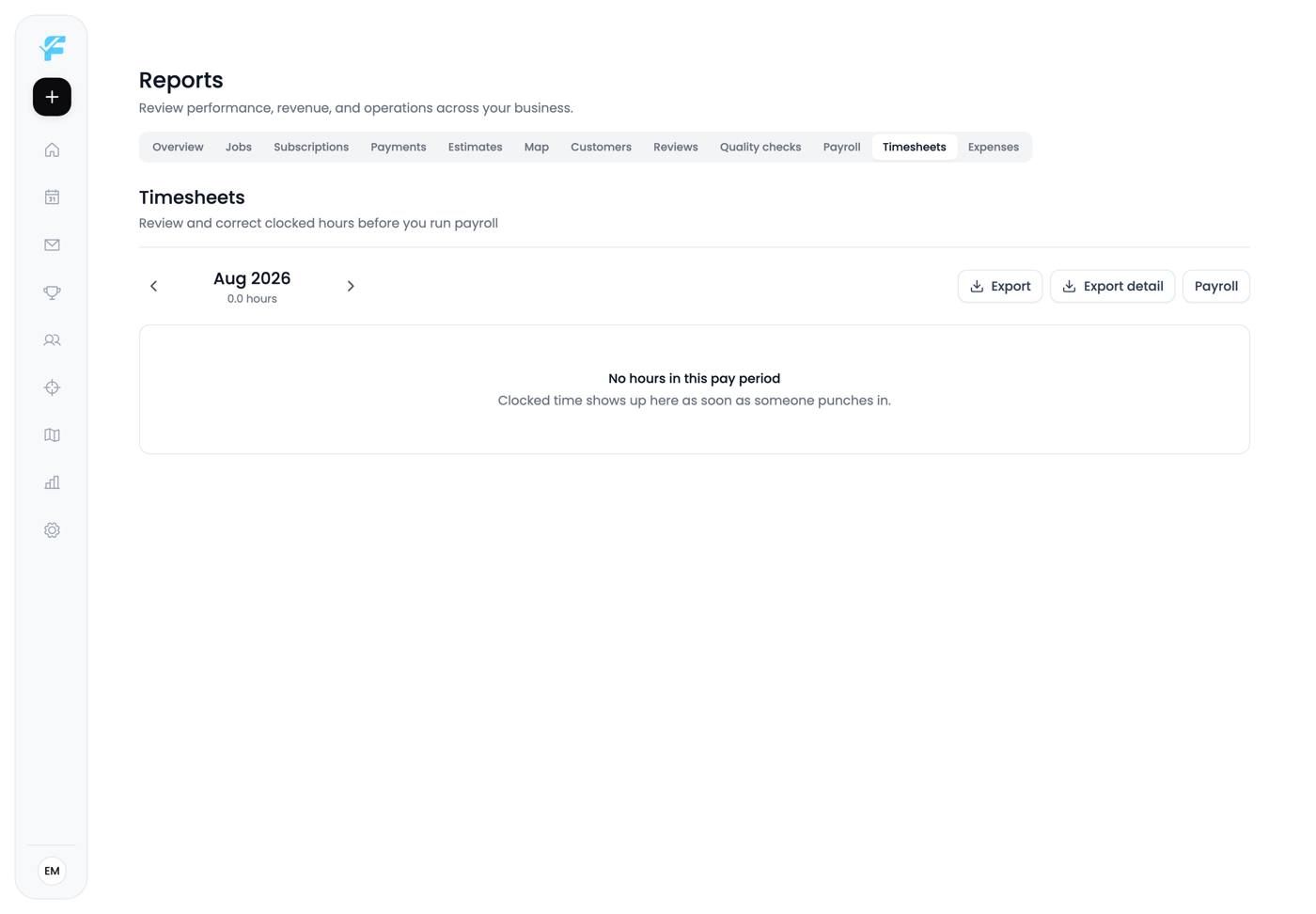
1. Pay periods
Previous pay period and Next pay period step through periods rather than arbitrary dates. That's deliberate, because payroll runs on periods and reading hours across a half-period boundary produces numbers that don't match anyone's pay.
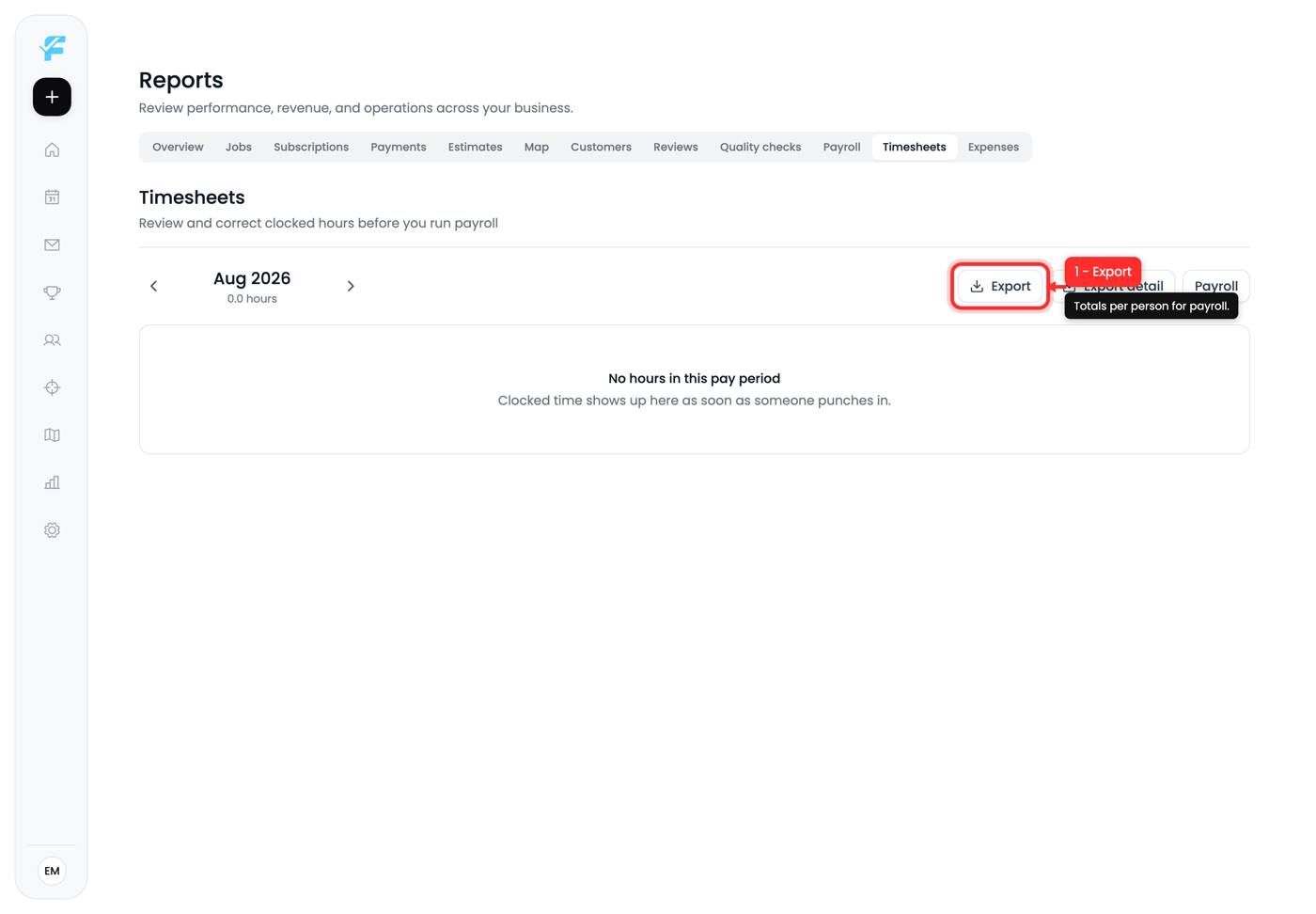
2. Export
Totals per person for the period. This is the file you hand to whoever runs payroll.
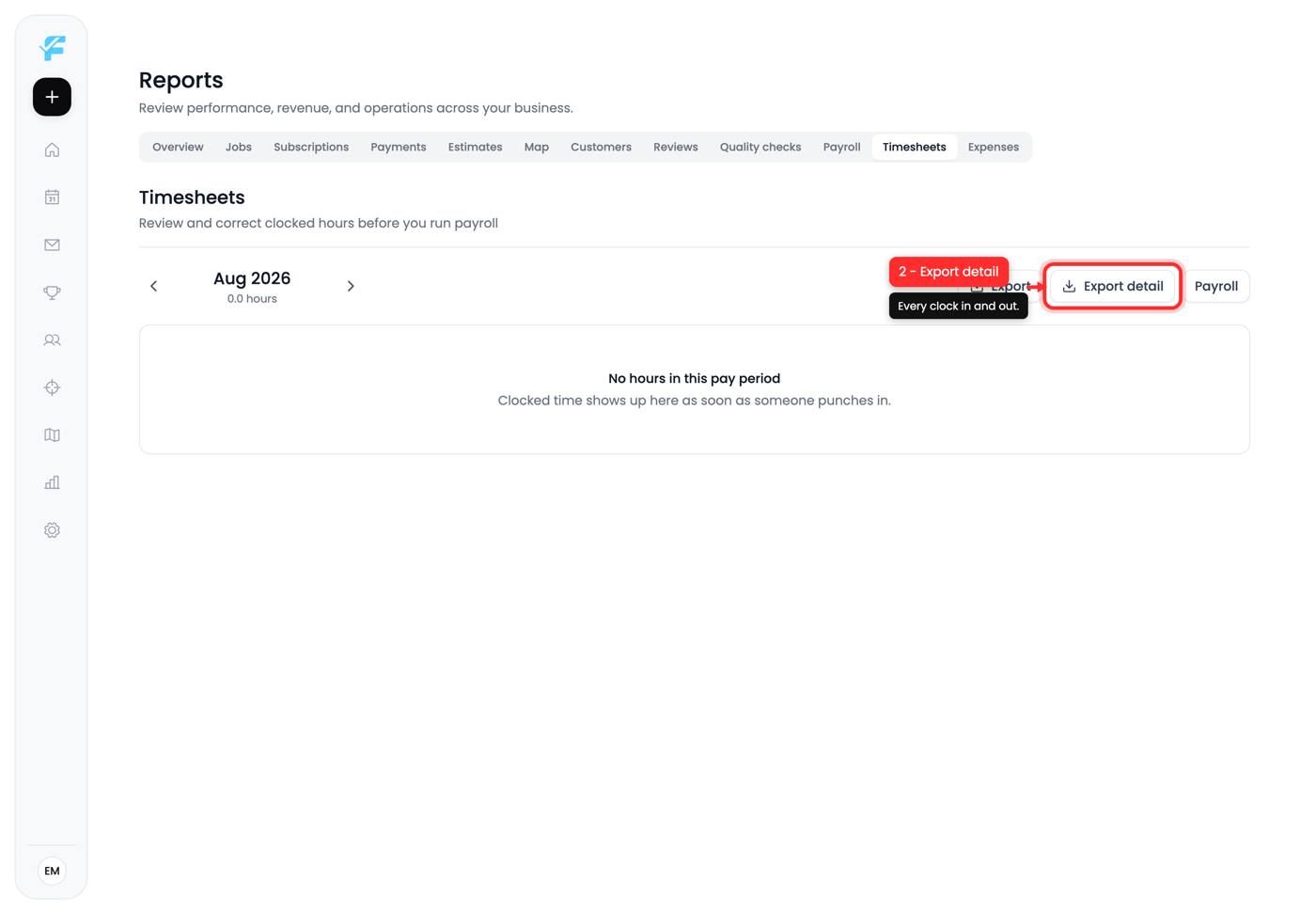
3. Export detail
Every individual clock in and out rather than daily totals. Use this when someone queries their hours, because a total is not an argument and a list of timestamps is.
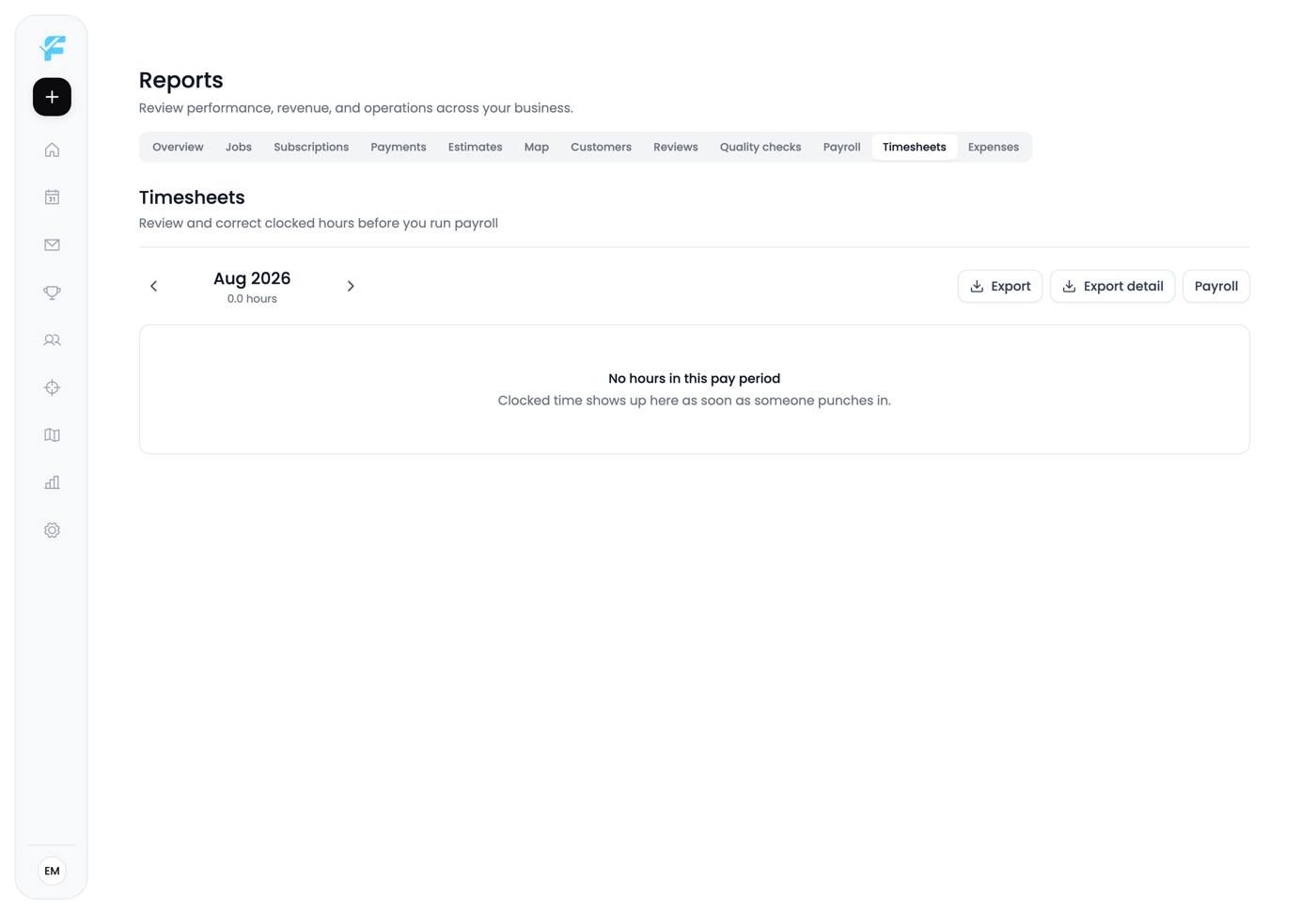
Reading the page
Hours show per person per day. A Needs attention filter surfaces rows with problems, typically a missing clock-out, and there's a control to show people with no hours at all.
The two things to check before running payroll:
- Needs attention is empty. A missing clock-out usually means a shift recorded as far too long or not at all.
- People with no hours are genuinely off, not people whose clock-ins failed.
Both are much easier to resolve in the same week they happened.
Timesheets against jobs
The useful comparison is hours logged against job durations. A job you scheduled for two hours that consistently takes three is a pricing problem, and this is where you'd see it.
Tips and gotchas
- Check Needs attention before every payroll run. Missing clock-outs are the usual culprit.
- Export detail settles disputes. Totals don't.
- Step by pay period, not by date.
- Compare hours to job durations. It's the cheapest pricing feedback you'll get.
Next up: Payroll
Still need help? Ask the team