QuickBooks Online
Written By Ignacio
Last updated About 2 months ago
QuickBooks sync pushes your customers and collected payments into your accounting, so you're not typing the same figures twice.
It lives at the bottom of Settings > Payments, below Stripe.
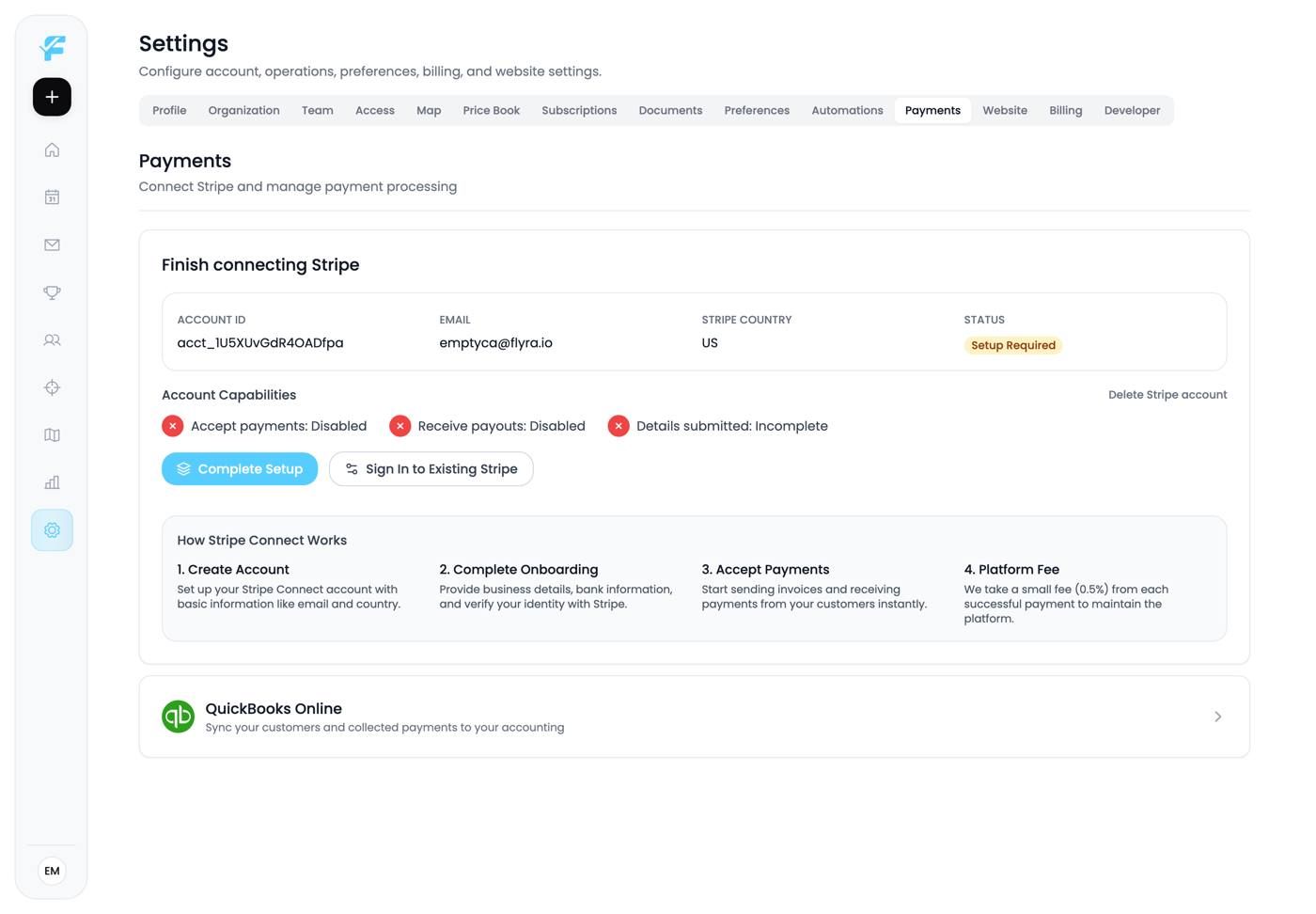
1. The QuickBooks Online card
Described in the app as syncing "your customers and collected payments to your accounting".
Note what that covers and what it doesn't. Customers and payments received, yes. Your Flyra expenses, your timesheets and your payroll are separate systems and stay that way.
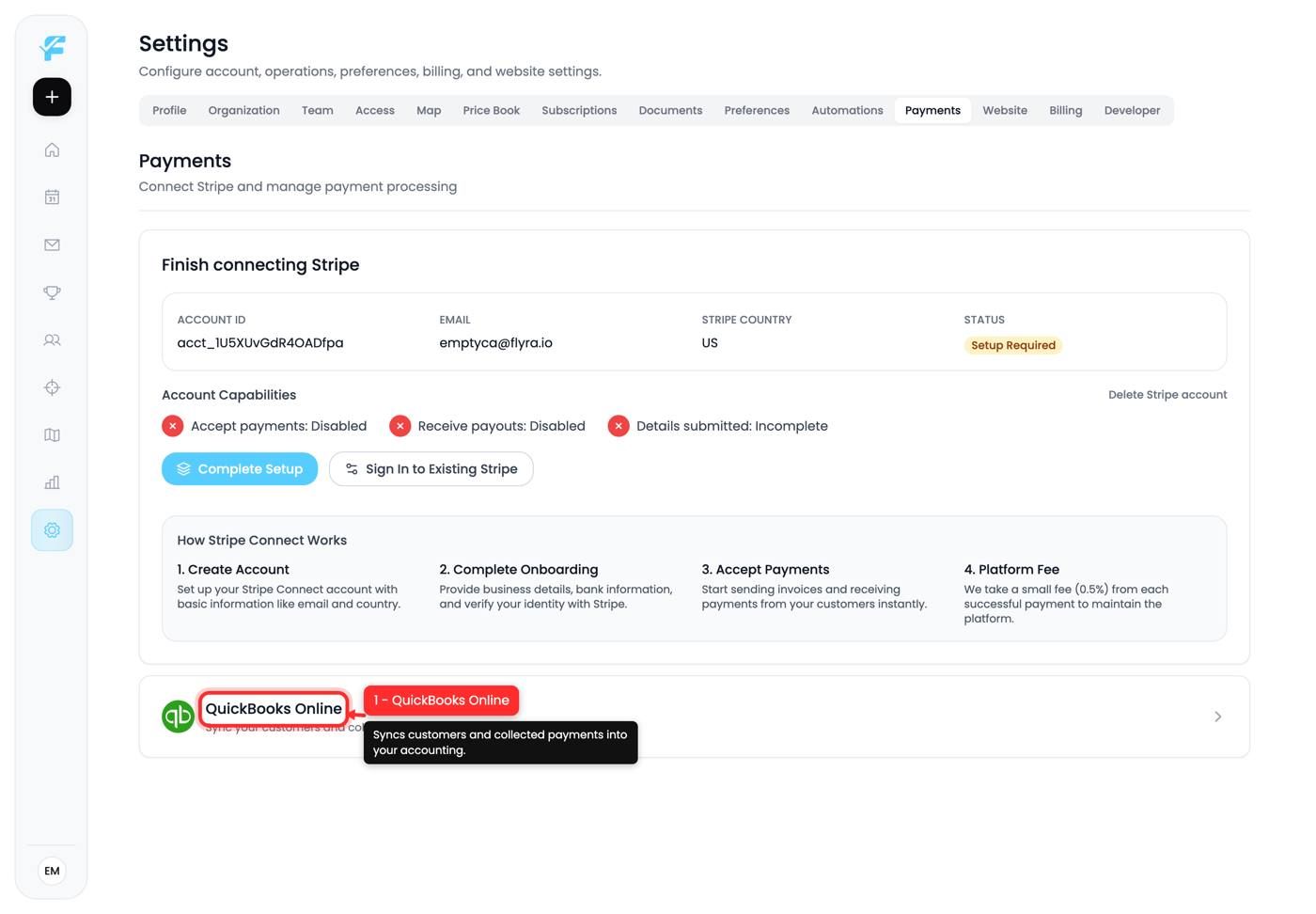
Connect Stripe first
The order matters. Stripe is what collects the money and marks invoices paid, and QuickBooks syncs the result. Connecting QuickBooks to an account that isn't taking payments yet gives you a sync with nothing to sync.
Before you connect
Two things worth sorting out first, because they're much harder to fix afterwards:
Your customer list should be clean. Duplicates in Flyra become duplicates in QuickBooks, and de-duplicating in an accounting system is considerably less fun.
Agree with your bookkeeper how payments should land. Which account, and how to handle the difference between an invoice being marked paid in Flyra and money actually arriving from Stripe. Stripe pays out on its own schedule, so those two dates are not the same, and that gap is the thing that confuses reconciliation.
Tips and gotchas
- Stripe first, QuickBooks second.
- Clean your customer list before the first sync. Duplicates propagate.
- Marked paid is not the same as banked. Stripe payouts lag.
- Talk to your bookkeeper before connecting, not after the first reconciliation.
Next up: The website builder
Still need help? Ask the team